
Seeing no service after update? You installed a system update, the phone restarted, and now the signal bar shows “No service”, “Emergency calls only”, or mobile data just won’t work. This is one of the most common problems after an Android update, and it’s usually caused by network settings that didn’t carry over correctly.
Here’s how to fix it, starting with the quickest solutions.
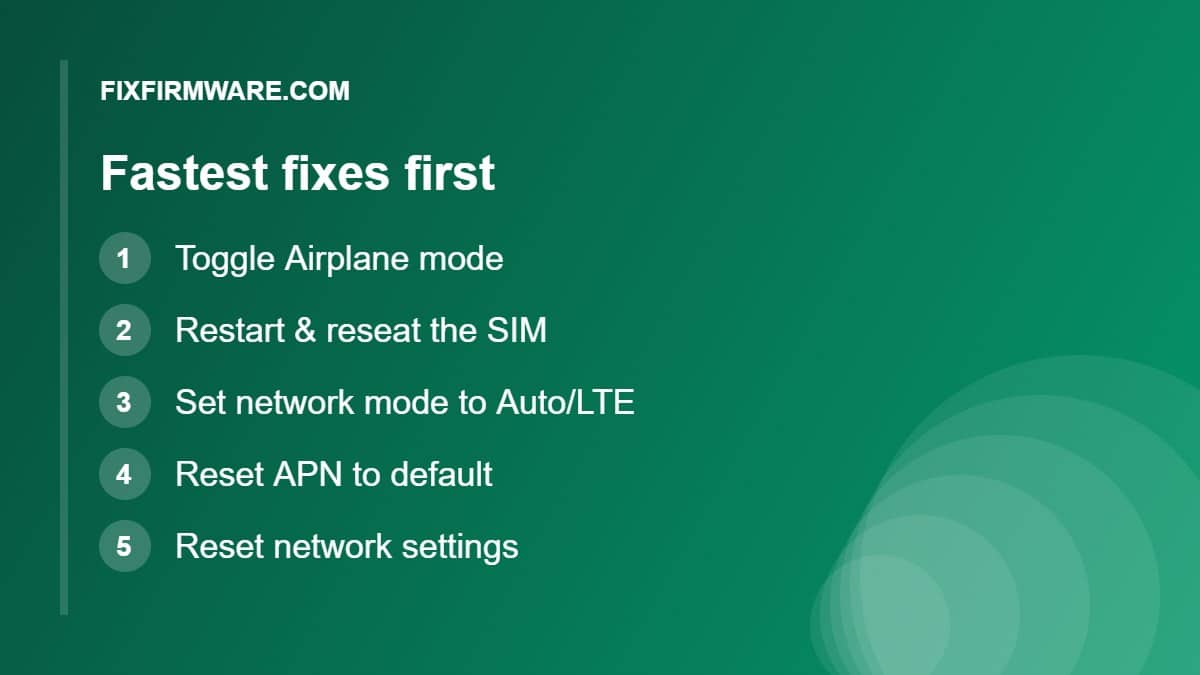
Quick Checks for No Service After Update
- Is it just you? Ask someone on the same carrier nearby or check your carrier’s social media for an outage.
- Is your account active? An unpaid bill or expired prepaid plan can show as “No service” or “Emergency calls only”.
- Does the SIM work in another phone? This quickly tells you whether the problem is the SIM or your phone.
Fix 1: Toggle Airplane Mode to Fix No Service After Update
Turn Airplane mode on, wait 30 seconds, and turn it off. This forces the phone to search for the network again and fixes many “No service” errors instantly.
Fix 2: Restart the Phone and Reseat the SIM
- Turn the phone off.
- Remove the SIM tray, check the SIM for dust or damage, and put it back firmly.
- Turn the phone on and wait one minute for it to register on the network.
Using an eSIM? Go to Settings > Connections (or Network & internet) > SIM manager and make sure the eSIM is turned on.
Fix 3: Set the Network Mode Manually
After an update, the phone may try to use a network mode your carrier doesn’t support well (for example 5G-only or a mode without 4G).
- Samsung: Settings > Connections > Mobile networks > Network mode > choose 5G/LTE/3G/2G (auto connect) or LTE/3G/2G (auto connect).
- Xiaomi/Redmi/POCO: Settings > SIM cards & mobile networks > tap your SIM > Preferred network type > Prefer 4G or Prefer 5G.
- Google Pixel and most others: Settings > Network & internet > SIMs > Preferred network type.
If 5G is unreliable in your area, choosing the LTE/4G option often fixes signal drops.
Fix 4: Select Your Carrier Manually
- Open Mobile networks > Network operators.
- Turn off Select automatically and wait for the list of networks.
- Choose your carrier, then turn Select automatically back on.
Fix 5: Reset the APN Settings
If calls work but mobile data doesn’t, your APN (Access Point Name) settings may be wrong after the update.
- Go to Mobile networks > Access Point Names.
- Tap the three-dot menu and choose Reset to default.
- If data still doesn’t work, check your carrier’s website for the correct APN settings and add them manually.
Fix 6: Reset Network Settings for No Service After Update
This resets Wi-Fi, Bluetooth and mobile network settings to factory defaults without deleting your apps or files. You’ll need to re-enter Wi-Fi passwords afterwards.
- Samsung: Settings > General management > Reset > Reset network settings.
- Xiaomi: Settings > Connection & sharing > Reset Wi-Fi, mobile networks, and Bluetooth.
- Pixel / stock Android: Settings > System > Reset options > Reset mobile network settings.
Fix 7: Wipe the Cache Partition
Leftover temporary files from the previous version can interfere with the modem software. On phones that still have the option, boot into Recovery Mode and choose Wipe cache partition. This doesn’t delete personal data.
Fix 8: Check for a Patch That Fixes No Service After Update
If many people report the same network problem after an update, manufacturers often release a quick fix. Connect to Wi-Fi and check Settings > Software update. Also update the Carrier Services app from Google Play.
Fix 9: Check Your IMEI
Dial *#06#. If the IMEI shows as “null”, “0” or “unknown”, the update may have damaged the phone’s network (EFS) data. Don’t try to change or “repair” the IMEI with third-party tools – it’s illegal in many countries and can permanently damage the phone. Instead:
- Reinstall the official firmware for your exact model (see our Odin and Mi Flash Tool guides).
- If the IMEI is still missing, take the phone to an authorized service center. They can restore it officially.
Fix 10: Factory Reset (Last Resort)
Back up your data, then go to Settings > Reset > Factory data reset. After setup, test the network before restoring apps. If it works, a restored app or setting was the cause.
When No Service After Update Needs Your Carrier or a Service Center
- The SIM doesn’t work in any phone – ask your carrier for a replacement SIM.
- Your carrier says your device isn’t registered or is blocked on the network.
- No signal even after a firmware reinstall – this may be a hardware (antenna or modem) fault.
Frequently Asked Questions
Why does “Emergency calls only” appear?
Your phone can see a mobile network but can’t register on your carrier’s network. Causes include SIM problems, an inactive account, wrong network mode, or a software issue after an update.
Will resetting network settings delete my photos?
No. It only resets connection settings like Wi-Fi passwords, Bluetooth pairings and mobile network preferences.
Does no service after update mean my SIM card is damaged?
No. Updates can’t physically damage a SIM. If the SIM stops working everywhere, it’s a coincidence or a carrier-side issue.
Related Guides
- How to Fix 4G or 3G Not Working on iPhone
- How to Flash Samsung Stock Firmware with Odin
- How to Flash Xiaomi Fastboot ROM with Mi Flash Tool
- More phone fix guides
Google also has an official guide in the Android Help Center.
Conclusion
Most “No service” problems after an update are fixed by toggling Airplane mode, choosing the right network mode, or resetting network settings. If your IMEI is missing or nothing helps, reinstall the official firmware or visit a service center. Tell us your phone model and carrier in the comments if you’re still stuck.
