
Is your Samsung stuck on boot logo? The Galaxy powers on, shows the Samsung logo, and then either freezes there or restarts again and again. This is usually called a boot loop, and most cases can be fixed at home without a repair shop.
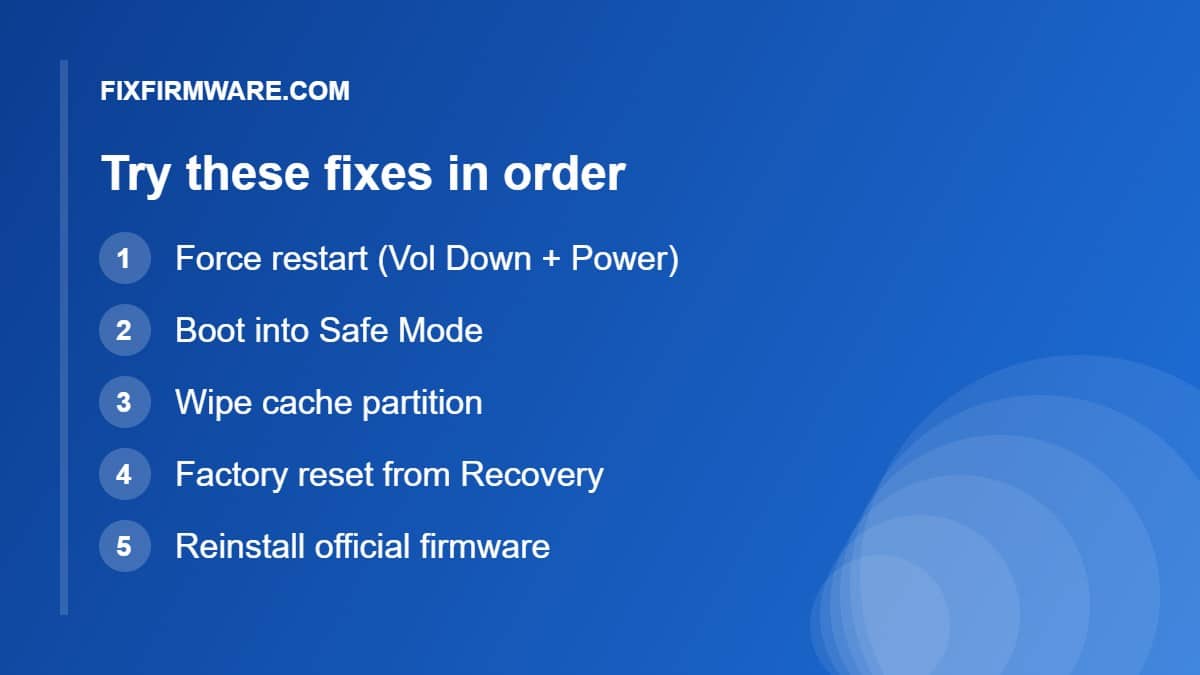
This guide walks through every fix in order, from the safest (no data loss) to the most powerful (reinstalling the official firmware). Try them one at a time and stop as soon as your phone boots normally.
Why Is My Samsung Stuck on Boot Logo?
Before fixing it, it helps to know what usually causes it:
- A failed or interrupted software update. If the battery died or the phone restarted halfway through an update, system files can be left incomplete.
- A bad app or launcher. Some apps that start automatically at boot can crash the system repeatedly.
- Corrupted cache. Old temporary system files left over after an update can conflict with the new version.
- Full storage. When internal storage is almost 100% full, Android may not have room to finish starting.
- Hardware problems. A swollen battery, a damaged power button stuck in the pressed position, or water damage can also cause restarts.
Before You Start
- Charge the phone for at least 30 minutes with the original or a good-quality cable. Many “boot loops” are just a nearly empty battery that can’t finish booting.
- Remove the phone case and check that the power and volume buttons are not stuck. A jammed power button causes endless restarts.
- Know your Google account email and password. If you end up doing a factory reset, the phone will ask for the Google account that was on it (this is Google’s Factory Reset Protection and it is normal).
Fix 1: Force Restart a Samsung Stuck on Boot Logo
A force restart cuts power to the system and starts it fresh. It does not delete anything.
- Press and hold Volume Down + Power (Side key) together.
- Keep holding for about 10–15 seconds until the screen turns off and the phone vibrates.
- Release the buttons and let the phone start normally.
If it boots and then gets stuck again after a minute, a recently installed app is the most likely cause. Move on to Safe Mode.
Fix 2: Boot Into Safe Mode
Safe Mode starts Android with only the built-in apps. If the phone works in Safe Mode, a downloaded app is causing the problem.
- Force restart the phone (Volume Down + Power).
- As soon as the Samsung logo appears, release Power and press and hold Volume Down.
- Keep holding until the phone finishes booting. You will see “Safe mode” in the bottom-left corner.
- Go to Settings > Apps and uninstall any app you installed or updated right before the problem started. Launchers, cleaners, antivirus apps, and theme apps are common troublemakers.
- Restart the phone normally.
Fix 3: Wipe the Cache Partition When Samsung Is Stuck on Boot Logo
Wiping the cache partition deletes temporary system files only. Your photos, apps and messages stay. This fixes a large number of boot loops that happen right after a software update.
Note: Samsung removed the “Wipe cache partition” option from recovery on some newer models. If you don’t see it, skip to Fix 4.
- Turn the phone off. If it keeps restarting, connect it to a computer or charger with a USB cable while doing the next step (newer Galaxy phones need a USB connection to enter recovery).
- Press and hold Volume Up + Power until the Samsung logo appears, then release.
- In the Android Recovery menu, use the volume keys to highlight Wipe cache partition and press Power to select.
- Choose Yes, wait for it to finish, then select Reboot system now.
The first boot after wiping cache can take a few minutes. Be patient.
Fix 4: Free Up Storage Using Safe Mode
If your storage was almost full, boot into Safe Mode (Fix 2) and delete large videos or move them to a computer or cloud storage. Try to keep at least 5–10% of storage free. Then restart normally.
Fix 5: Factory Reset From Recovery Mode
If nothing above works, a factory reset returns the software to its original state. This erases everything on the phone, so only do it if you have a backup or accept losing the data.
- Enter Recovery Mode (Volume Up + Power, with a USB cable connected on newer models).
- Select Wipe data/factory reset and confirm with Factory data reset.
- When finished, select Reboot system now.
- Set up the phone and sign in with the Google account that was on it before.
If you have a Samsung account backup or Google backup, you can restore apps and data during setup.
Fix 6: Reinstall Official Firmware If Samsung Is Still Stuck on Boot Logo
When a reset doesn’t help, the system partition itself is probably damaged. Reinstalling the official firmware for your exact model fixes this in most cases. You can do it with Samsung’s Smart Switch on a computer (Emergency Software Recovery) or manually with Odin.
Option A – Smart Switch (easiest):
- Install Smart Switch on a Windows PC or Mac from Samsung’s official website.
- Open it and go to More > Emergency Software Recovery and Initialisation.
- Enter your model number (found on the box or the back of the phone) and follow the instructions.
Option B – Odin (advanced): Download the official firmware for your exact model and region (CSC), put the phone in Download Mode, and flash it with Odin. We explain every step in our separate guide: How to Flash Samsung Stock Firmware with Odin.
Always use firmware that matches your exact model number (for example SM-A546E, not just “A54”). Flashing the wrong firmware can make the problem worse.
When It’s a Hardware Problem
If the phone still won’t boot after reinstalling firmware, the issue is likely hardware. Signs include:
- The phone restarts even while in Recovery or Download Mode.
- The back cover is bulging (swollen battery – stop using the phone immediately).
- The phone recently got wet or was dropped.
- It only boots while plugged into a charger.
In these cases, visit an authorized Samsung service center. If the phone is under warranty, the repair may be free.
How to Stop Your Samsung Getting Stuck on Boot Logo Again
- Charge to at least 50% before installing a system update and don’t restart the phone during the update.
- Keep 10% or more of your storage free.
- Install apps only from Google Play or the Galaxy Store.
- Turn on automatic backups in Settings > Accounts and backup.
Frequently Asked Questions
Will wiping the cache partition delete my photos?
No. Wiping the cache only removes temporary system files. Your photos, contacts, apps and messages are not touched.
Can I recover data if my Samsung is stuck on boot logo?
Sometimes. If the phone can boot into Safe Mode, back up your files right away. Reinstalling firmware with the “HOME_CSC” file in Odin also tries to keep data, but there is no guarantee, so treat it as a last resort.
How long should the first boot take after a reset or firmware flash?
Usually 3–10 minutes. Don’t force restart during this time.
Does Samsung stuck on boot logo mean the phone is dead?
No. Most boot loops are software problems and can be fixed with the steps above.
Related Guides
- How to Flash Samsung Stock Firmware with Odin
- How to Hard Reset Samsung Galaxy A32
- How to Reset Samsung Galaxy A13
- More phone fix guides
You can download Smart Switch and find repair options on Samsung Support.
Conclusion
If your Samsung is stuck on boot logo, start with a force restart and Safe Mode, then wipe the cache partition. Factory reset and firmware reinstall are your strongest tools when the software is badly damaged. If none of these work, it’s time for a professional hardware check. If you’re still stuck, tell us your exact model and what you see on the screen in the comments and we’ll help.
