
Need to flash Samsung firmware with Odin? Reinstalling the official (stock) firmware is the most reliable way to fix a Samsung phone that keeps crashing, is stuck in a boot loop, or has broken software after a failed update. Samsung technicians use Odin for this, and you can use it at home with a Windows PC.
This guide explains exactly what you need, how to find the correct firmware for your phone, and how to flash it safely.
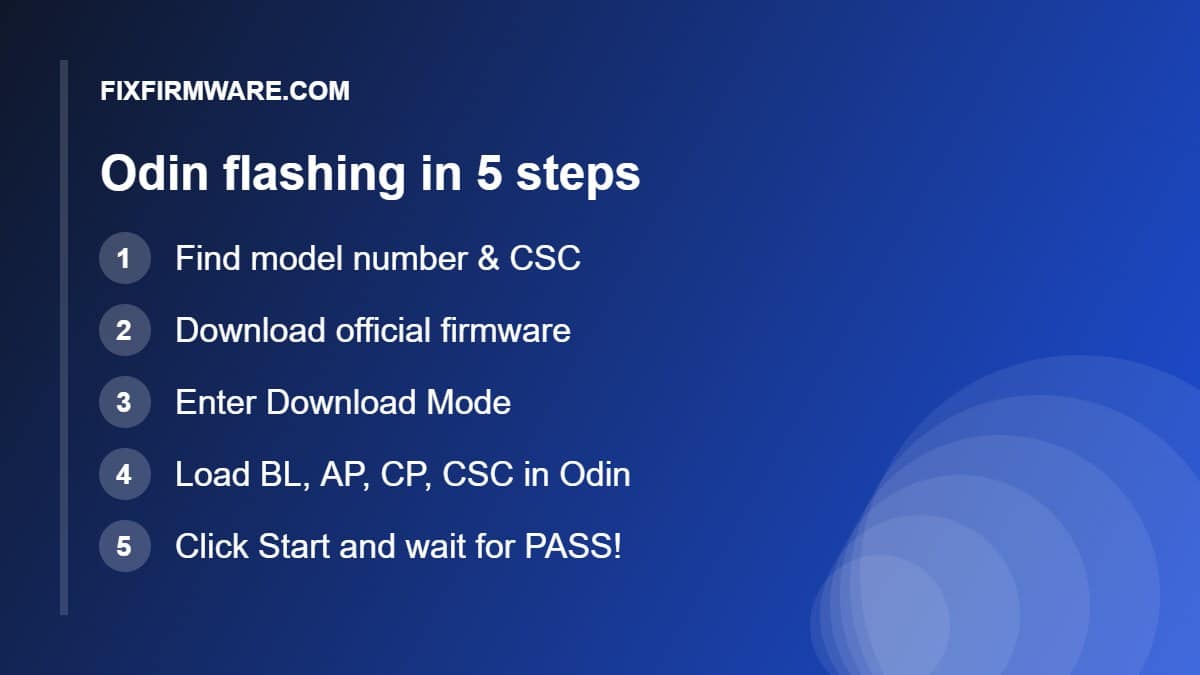
What Does It Mean to Flash Samsung Firmware with Odin?
Stock firmware is the original software Samsung installs on your phone at the factory: Android, One UI, the bootloader, the modem (radio) software and your region’s carrier settings. Flashing it replaces the damaged software with a clean, official copy.
Flashing official firmware does not root your phone, does not void the warranty, and does not change any security locks. It only reinstalls Samsung’s own software.
What You Need to Flash Samsung Firmware with Odin
- A Windows PC (Odin only runs on Windows).
- A good USB cable – preferably the original Samsung cable. Cheap cables are the number one cause of failed flashes.
- Your phone charged to at least 50%.
- Samsung USB Drivers installed on the PC (free from Samsung’s developer website).
- The latest version of Odin.
- The firmware file for your exact model number and region.
- About 30–60 minutes.
Step 1: Find Your Exact Model Number and CSC
Samsung makes many versions of the same phone. A Galaxy A54 sold in India is a different model number from one sold in the US. You must download firmware for your exact model.
- If the phone works: go to Settings > About phone and note the Model number (for example SM-A546E).
- If the phone doesn’t boot: look at the box, the SIM tray area, or the label on the back of older models. You can also see it in Download Mode (Step 3).
The CSC is your region/carrier code (for example INS for India or XSA for Australia). It’s shown in Settings > About phone > Software information > Service provider software version.
Step 2: Download the Correct Firmware
Official Samsung firmware can be downloaded with free tools such as Frija or Bifrost, which fetch files directly from Samsung’s servers, or from well-known firmware archive sites like SamMobile.
- Enter your model number and CSC.
- Download the latest version. Firmware files are large (usually 4–10 GB), so use a stable connection.
- Extract the ZIP file. You’ll get five files that start with BL, AP, CP, CSC and HOME_CSC.
| File | What it contains |
|---|---|
| BL | Bootloader |
| AP | Android system (the biggest file) |
| CP | Modem / mobile network software |
| CSC | Region settings – wipes all data |
| HOME_CSC | Region settings – tries to keep your data |
Important: Never downgrade to an older firmware than the one already on the phone. Samsung phones block downgrades to older bootloader versions, and the flash will fail.
Step 3: Put Your Samsung Phone in Download Mode
Download Mode is a special screen that lets Odin talk to the phone.
- Turn the phone off completely.
- On most current Galaxy phones: press and hold Volume Up + Volume Down together and plug the USB cable (connected to your PC) into the phone.
- A blue warning screen appears. Press Volume Up to continue.
- You’ll see a screen that says “Downloading… Do not turn off target”.
Older phones with a Home button use Volume Down + Home + Power instead.
Step 4: Load the Files in Odin
- Right-click Odin and choose Run as administrator.
- Look at the top-left box (ID:COM). It should turn blue or show “Added!” in the log. If it doesn’t, reinstall Samsung USB drivers or try another cable or USB port (use a port directly on the PC, not a hub).
- Click each button and select the matching file:
- BL → the BL file
- AP → the AP file (it may take a minute to load and verify)
- CP → the CP file
- CSC → choose CSC for a clean install (erases data) or HOME_CSC to try keeping data
- Leave the USERDATA slot empty.
- In the Options tab, make sure only Auto Reboot and F. Reset Time are ticked. Do not tick “Re-Partition” unless you know exactly why.
Step 5: Flash Samsung Firmware with Odin
- Click Start.
- Don’t touch the phone or cable while the progress bar moves. It usually takes 5–15 minutes.
- When the top box turns green and says PASS!, the flash is complete. The phone restarts by itself.
- The first boot can take up to 10 minutes. You may see an “Installing system update” screen – that’s normal.
Common Errors When You Flash Samsung Firmware with Odin
Odin doesn’t detect the phone (no blue COM box)
Reinstall Samsung USB drivers, try a different cable and USB port, close Smart Switch and Kies (they can block Odin), and restart the PC.
FAIL! “SW REV CHECK FAIL” or “Device: X, Binary: Y”
You’re trying to flash firmware with an older bootloader version than the phone has. Download the latest firmware for your model instead.
Stuck on “SetupConnection” or “Initialization”
Usually a cable or USB port problem. Close Odin, disconnect the phone, force restart it into Download Mode again, and try another cable.
“Model mismatch” or “Invalid ext4 image”
The firmware is for a different model. Double-check the model number and download again.
Phone boots but shows “Verification failed”
Go to Recovery Mode and perform Wipe data/factory reset. This happens when old data is incompatible with the new firmware.
After You Flash Samsung Firmware with Odin
- Sign in with the Google account that was previously on the phone. This is required after any reset.
- Check for updates in Settings > Software update.
- Restore your backup from Samsung Cloud, Google or Smart Switch.
Frequently Asked Questions
Is Odin official?
Odin is Samsung’s internal service tool. It isn’t published on Samsung’s consumer website, but it’s widely used by technicians and is safe when used with official firmware.
Will I void my warranty if I flash Samsung firmware with Odin?
No. Flashing official Samsung firmware keeps the phone in its original state. Flashing custom ROMs or rooting is what trips the Knox warranty flag.
Can I use Odin on a Mac?
Not directly. Use Smart Switch’s Emergency Software Recovery on Mac, or a Windows PC for Odin.
Will I lose my data when I flash Samsung firmware with Odin?
With CSC, yes. With HOME_CSC, Odin tries to keep your data, but always back up first if you can.
Related Guides
- Samsung Stuck on Boot Logo or Boot Loop? 6 Fixes
- How to Hard Reset Samsung Galaxy A32
- USB drivers and tools
Get Samsung USB drivers and Smart Switch from Samsung Support.
Conclusion
Knowing how to flash Samsung firmware with Odin is the closest thing to a “factory repair” you can do at home. The keys to success are the right firmware for your exact model, a good cable, and patience while it flashes. If you get an error not listed here, share the exact Odin log in the comments and we’ll help you read it.
