
Is your iPhone stuck on Apple logo and never reaching the Lock Screen? Maybe it happened after an iOS update, after restoring from a backup, or out of nowhere. This guide covers every fix in order, starting with options that keep your data.
Why Is My iPhone Stuck on Apple Logo?
- An iOS update or restore was interrupted.
- Storage was almost full during an update.
- Corrupted system files after a failed backup restore.
- Hardware issues such as a failing battery, water damage, or damage from a drop.
Note: If you’re transferring data from an old iPhone, a progress bar under the Apple logo is normal and can take an hour or more. Leave it connected to power and wait.
Fix 1: Charge It and Wait
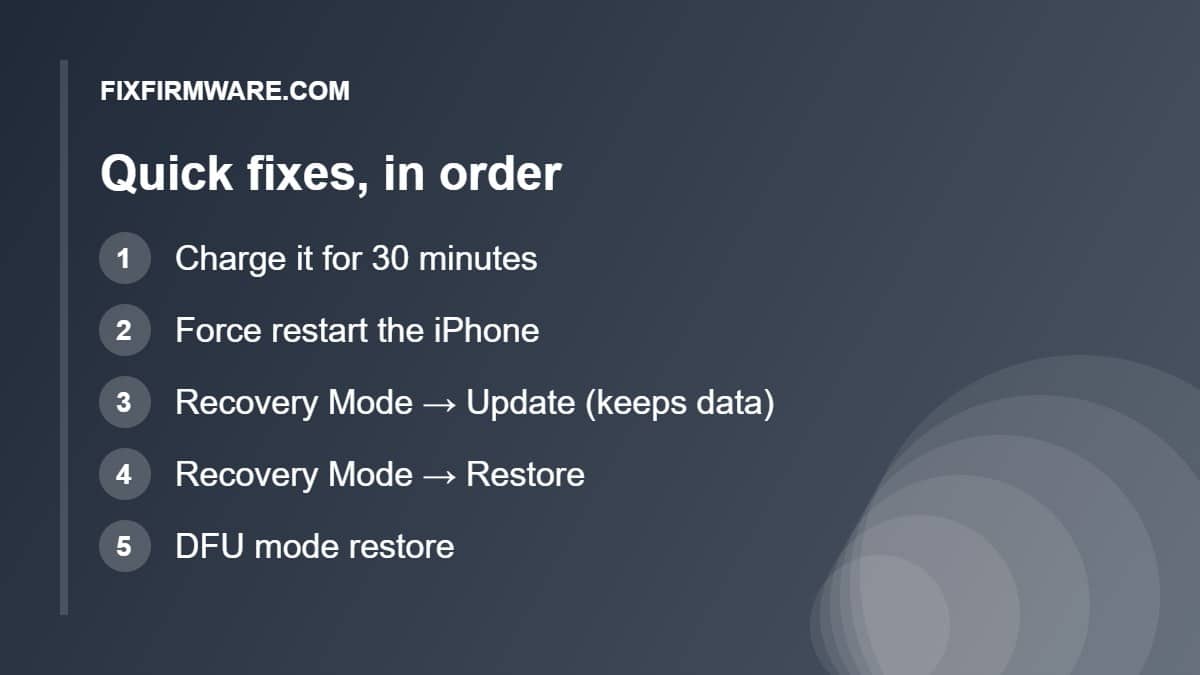
Connect the iPhone to a wall charger for at least 30 minutes. A battery that is almost empty can cause the phone to restart on the logo. If a progress bar is visible and moving, give it time.
Fix 2: Force Restart an iPhone Stuck on Apple Logo
A force restart doesn’t erase anything. The button combination depends on the model:
- iPhone 8 and later (including iPhone SE 2nd/3rd gen): Press and quickly release Volume Up, press and quickly release Volume Down, then press and hold the Side button until the Apple logo appears again (about 10–20 seconds).
- iPhone 7 / 7 Plus: Press and hold Volume Down + Sleep/Wake button until the Apple logo appears.
- iPhone 6s and earlier, SE 1st gen: Press and hold Home + Sleep/Wake button until the Apple logo appears.
Fix 3: Fix iPhone Stuck on Apple Logo With Recovery Mode Update (Keeps Data)
Recovery Mode lets your computer reinstall iOS. Choosing Update tries to fix the system without erasing your data.
You need: a Mac (Finder) or a Windows PC with the Apple Devices app or iTunes, and a working USB cable.
- Connect the iPhone to the computer and open Finder (Mac) or Apple Devices/iTunes (Windows).
- Use the same button sequence as a force restart, but keep holding the last button even after the Apple logo appears, until you see the Recovery Mode screen (a computer and cable icon).
- On the computer, a message appears: “There is a problem with the iPhone that requires it to be updated or restored.” Click Update.
- The computer downloads and reinstalls iOS. If the download takes longer than 15 minutes, the iPhone exits Recovery Mode; just repeat step 2.
Fix 4: Restore in Recovery Mode (Erases Data)
If Update doesn’t work, repeat the steps and choose Restore. This erases the iPhone and installs a fresh copy of iOS. After it finishes, you can restore from an iCloud or computer backup.
After a restore, the iPhone will ask for the Apple Account (Apple ID) that was signed in before. This is Activation Lock, Apple’s anti-theft protection, so make sure you know the password.
Fix 5: DFU Restore for an iPhone Stuck on Apple Logo
DFU (Device Firmware Update) mode restores the firmware at a lower level than Recovery Mode. Use it when Recovery Mode restore fails. It erases all data.
iPhone 8 and later:
- Connect the iPhone to the computer.
- Press and release Volume Up, then press and release Volume Down.
- Press and hold the Side button for 10 seconds until the screen goes black.
- Keep holding Side and also press and hold Volume Down for 5 seconds.
- Release the Side button but keep holding Volume Down for another 10 seconds.
- The screen stays black, and the computer says it detected an iPhone in recovery mode. Click Restore.
If you see the Apple logo or the Recovery Mode screen, you held the buttons too long – try again.
Common iTunes/Finder Error Codes
- Error 4013 / 4014: Usually a connection or hardware issue. Try another cable, USB port and computer. If it repeats, it may be a logic board problem.
- Error 9 or 4005: The connection dropped during restore. Use an original cable and a port directly on the computer.
- Error 14: Often a cable problem or not enough storage on the computer.
- Error 3194: The computer can’t reach Apple’s update server. Check your internet connection and security software.
When It’s a Hardware Problem
- The iPhone restarts even in Recovery Mode.
- Restores fail repeatedly with error 4013/4014 on different computers.
- The phone recently got wet or was dropped.
Book a repair at an Apple Store or Apple Authorized Service Provider. Check Apple’s coverage page with your serial number to see if you’re under warranty or AppleCare.
How to Prevent Your iPhone Getting Stuck on Apple Logo
- Back up to iCloud or your computer regularly.
- Keep at least a few GB of storage free before updating iOS.
- Update while connected to power and Wi-Fi, and don’t force restart during an update.
Frequently Asked Questions
Will Recovery Mode erase my iPhone?
Only if you choose Restore. Choosing Update reinstalls iOS and tries to keep your data.
How long can an iPhone be stuck on Apple logo during an update?
A normal boot takes under a minute. With a progress bar during an update or transfer, it can take much longer. If it stays on the logo without a progress bar for more than 15–20 minutes, follow the fixes above.
Can I fix an iPhone stuck on Apple logo without a computer?
Only a force restart can be done without a computer. Updating or restoring iOS requires a Mac or PC.
Related Guides
- How To Factory Reset iPhone 11 Without Password
- How to Fix 4G or 3G Not Working on iPhone
- How To Fix Verification Failed Apple ID Error
For official instructions and repair options, see Apple iPhone Support.
Conclusion
If your iPhone is stuck on Apple logo, try a force restart first, then Recovery Mode with Update to keep your data. Restore and DFU mode are stronger options if the system is badly damaged. If restores keep failing, it’s likely hardware and needs a professional repair. Share your iPhone model and any error code in the comments and we’ll help.
