
If your Xiaomi, Redmi or POCO phone is stuck in a boot loop, keeps crashing after a HyperOS update, or only opens Fastboot mode, reinstalling the official Fastboot ROM with Mi Flash Tool is usually the cure. This guide shows you how to use Mi Flash Tool safely on a Windows PC.
Before You Begin: Read This
- Your bootloader must already be unlocked to flash a Fastboot ROM on most Xiaomi phones. If the bootloader is locked, use the Recovery ROM method or Xiaomi’s service center instead (explained at the end of this guide).
- Flashing a Fastboot ROM with “clean all” erases all data.
- Use only the official ROM for your exact device codename and region.
- Charge the phone to at least 50%.
What You Need to Use Mi Flash Tool
- A Windows PC with at least 15 GB of free space.
- The original or a good-quality USB cable.
- Mi Flash Tool (the latest version).
- Xiaomi/Qualcomm or MediaTek USB drivers (Mi Flash Tool can install them for you).
- The official Fastboot ROM (.tgz file) for your phone.
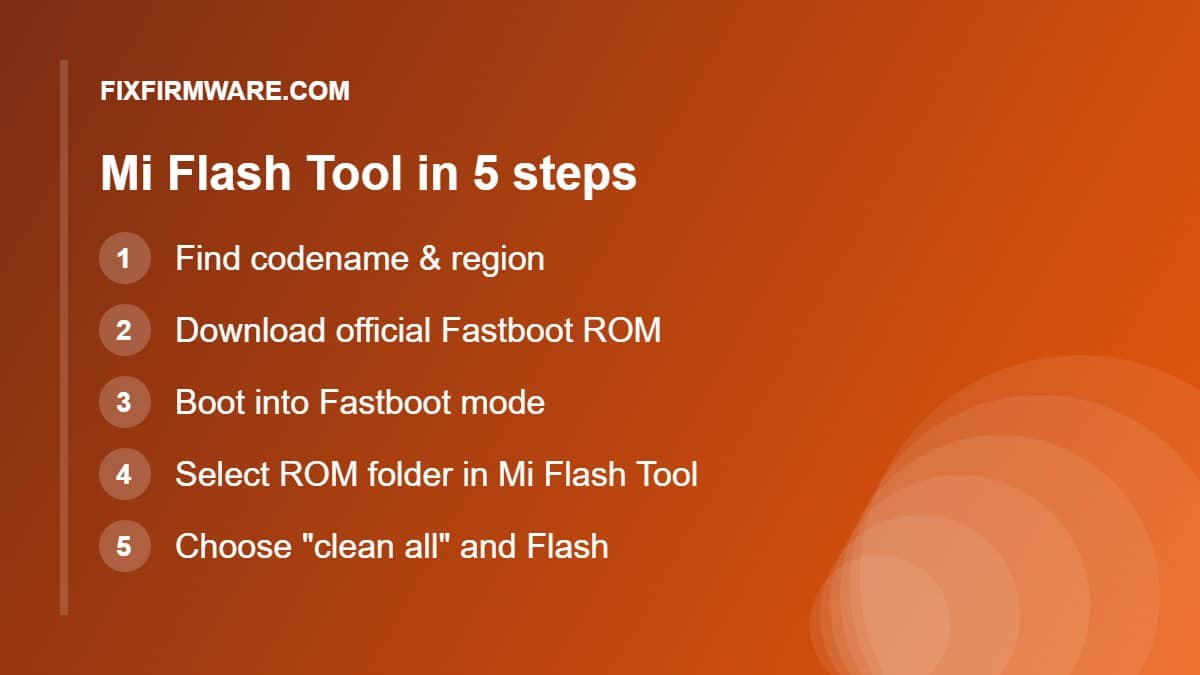
Step 1: Find Your Device Codename and Region
Xiaomi uses codenames for each model (for example “sweet” for Redmi Note 10 Pro). Downloading the wrong ROM is the most common mistake.
- If your phone boots: go to Settings > About phone and check the model and HyperOS/MIUI version. The letters at the end of the version (such as MI for Global, IN for India, EU for Europe) show your region.
- Search “[your model] codename” to confirm the codename.
Region tip: Indian (IN) devices should only use Indian ROMs. Flashing a different region on some devices can cause network problems or a lock.
Step 2: Download the Official Fastboot ROM for Mi Flash Tool
Download the Fastboot ROM for your codename and region from Xiaomi’s official ROM page or a trusted mirror that links to Xiaomi’s servers (the file name should start with your codename and end in .tgz). Extract it twice (.tgz → .tar → folder) using 7-Zip. Move the folder to a short path like C:\ROM, with no spaces in the folder name.
Step 3: Boot Into Fastboot Mode for Mi Flash Tool
- Turn the phone off.
- Press and hold Volume Down + Power until you see the Fastboot screen (a bunny or the “FASTBOOT” text).
- Connect the phone to your PC with the USB cable.
Step 4: Flash With Mi Flash Tool
- Open Mi Flash Tool as administrator. If it asks to install drivers, click Install.
- Click Select and choose the extracted ROM folder (the one that contains the “images” folder and the .bat files).
- Click Refresh. Your device should appear with a serial number. If not, check drivers and cable.
- At the bottom, choose a flash option:
- clean all – erases all data, keeps the bootloader unlocked. Best for fixing boot loops.
- save user data – tries to keep data. Use only if you’re installing the same or a newer version.
- clean all and lock – erases data and re-locks the bootloader. Only use this if you are 100% sure the ROM is the correct official one for your region, otherwise the phone may refuse to boot.
- Click Flash. Don’t disconnect the phone. It takes about 5–15 minutes.
- When the status says success, the phone reboots. The first boot can take 10 minutes.
Common Mi Flash Tool Errors
“Device not found” / nothing appears after Refresh
Install the drivers from Mi Flash Tool’s Driver menu, use a USB 2.0 port if available, try a different cable, and make sure the phone is on the Fastboot screen.
“Flash crclist error” or “Flash partition error”
Usually caused by a path with spaces or a corrupted download. Move the ROM folder to C:\ROM and re-download if needed.
“Anti-rollback check error”
The ROM is older than what’s on your phone. Xiaomi blocks rollbacks on many models. Download a newer ROM.
“Erasing is not allowed in locked state”
Your bootloader is locked. Use the Recovery ROM method below or a service center.
Stuck at “Flashing…” for a long time
Wait at least 20 minutes. If it doesn’t progress, close Mi Flash Tool, force restart into Fastboot (hold Volume Down + Power), and try again with a different USB port.
Can You Use Mi Flash Tool With a Locked Bootloader?
You still have options:
- Recovery update: If the phone opens Mi Recovery (Volume Up + Power), use Wipe Data first. Some versions also offer “Connect with Mi Assistant” to reinstall the system with a PC.
- Service center: Xiaomi authorized service centers can reflash a locked phone. Bring proof of purchase.
- Unlock the bootloader officially: Xiaomi’s official unlock process requires your Mi account to be logged in on the phone and a waiting period. It can’t be done on a phone that won’t boot.
After Flashing With Mi Flash Tool
- Sign in with your Google account and your Mi account – the phone will ask for them because of built-in anti-theft protection.
- Check Settings > About phone > HyperOS version for updates.
- Don’t install battery “booster” or “cleaner” apps; they are a common cause of instability.
Frequently Asked Questions
What’s the difference between a Fastboot ROM and a Recovery ROM?
A Fastboot ROM contains every partition and is flashed from a PC. A Recovery ROM is a ZIP update installed from the phone itself. Fastboot ROMs fix more serious problems but need an unlocked bootloader.
Will using Mi Flash Tool void my warranty?
Flashing official ROMs generally doesn’t, but unlocking the bootloader may affect warranty in some regions. Check Xiaomi’s policy for your country.
Can I switch from China ROM to Global ROM?
Only on devices sold in that region. Flashing a ROM from a different region can cause problems, especially when the bootloader is re-locked.
Related Guides
- Samsung Stuck on Boot Logo? 6 Fixes
- No Service After Android Update? 10 Fixes
- More flashing tools and guides
For official support and service centers, visit Xiaomi Global Support.
Conclusion
Mi Flash Tool with the correct official Fastboot ROM can bring most Xiaomi, Redmi and POCO phones back from a boot loop in under 30 minutes. Match the codename and region, use “clean all” for a fresh start, and avoid “clean all and lock” unless you’re sure. Questions? Leave your model and the exact error in the comments.
